Support
Help is near.
Setup steps, how to steer, what every message in the app means, and how to reach a person. Most fixes are one step.
Set up Farside
- Put Farside for Mac on your Mac. Download Farside for Mac from this website (coming soon), open it, and move it to Applications if it asks. It lives in the menu bar. You need macOS 26 or later on a Mac with Apple silicon (M1 or later).
- Allow two permissions. Screen Recording, so your iPhone or iPad can see the screen, and Accessibility, so taps become clicks and typing becomes typing. Farside opens the right settings page; flip the switch and the setup window notices by itself. macOS may ask you to quit and reopen Farside once.
- Get the app on your iPhone or iPad. Get Farside from the App Store (coming soon). You need iOS 26 or later on iPhone, or iPadOS 26 or later on iPad.
- Pair. On the Mac, choose Pair a Phone… in the Farside menu. In the app, tap Scan and point the camera at the code. Then choose Allow on the Mac. No account, no password.
- Allow Local Network on your iPhone or iPad. When it asks to find devices on your local network, choose Allow. That’s how it finds your Mac at home.
- Tap Connect. Your Mac appears. The first time, a short practice pad shows you how to steer; nothing you do there reaches the Mac.
How to steer
Your finger doesn’t go to the button: the pointer is already on it, and a tap anywhere clicks right there.
| On your iPhone or iPad | On your Mac |
|---|---|
| Slide one finger | Move the pointer (it moves, it doesn’t jump to your finger) |
| Tap | Click where the pointer is |
| Pinch | Zoom the view in or out |
| Swipe up on the handle | Show the controls, including the keyboard |
Force Touch and pressure gestures can’t be done on a touch screen; use right-click or the app’s own buttons instead.
Can’t connect?
- Is the Mac awake and logged in? Farside can’t wake a sleeping Mac or get past the login screen.
- Is the Farside icon in the Mac’s menu bar, with sharing on?
- Are your iPhone or iPad and your Mac on the same network?
- Is Local Network allowed for Farside on the iPhone or iPad? Check Settings › Privacy & Security › Local Network.
- Still stuck? Quit Farside on the Mac, open it again, and reconnect. Then write to us.
The Mac says permissions are missing
If you flipped the switch but Farside still says it can’t see or control the Mac, macOS may be holding on to an old permission.
- Quit Farside from its menu bar, open it again and check the setup window.
- Still not detected? Open System Settings › Privacy & Security, find Farside under Screen & System Audio Recording (or Accessibility), select it and remove it with the − button.
- Add it back with +, choosing Farside in Applications, and turn it on.
- Reopen Farside. The setup window updates by itself.
macOS sometimes asks again, every so often, whether Farside may keep recording the screen. Say yes on the Mac and sharing picks up where it left off.
What a message means
Every message in Farside says what happened and what to do. Here they all are, in case one needs more room.
Couldn’t reach your Mac.
Your Mac may be asleep or offline, or Farside isn’t running on it.
Fix: Wake the Mac, check that the Farside icon is in its menu bar, then tap Try Again.
Your Mac isn’t available right now.
The Mac isn’t sharing at the moment.
Fix: Check that it’s awake and logged in, and that Farside is in its menu bar with sharing on.
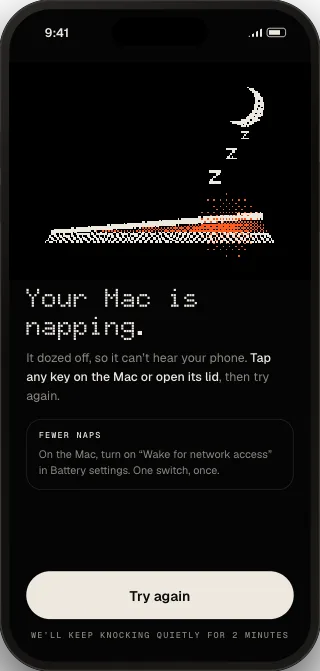
Your Mac is napping.
It dozed off, so it can’t hear your iPhone or iPad.
Fix: Tap any key on the Mac or open its lid, then try again. To nap less, turn on Wake for network access in the Mac’s Battery or Energy settings.
Farside is still closing your last session.
The previous connection hasn’t finished shutting down.
Fix: Wait a few seconds and try again.
Couldn’t verify this Mac.
The secure handshake between your devices didn’t complete.
Fix: Try again. If it keeps happening, pair again from the Farside menu on your Mac.
The connection glitched, so Farside ended the session to keep your Mac safe.
Something arrived that didn’t look right, so Farside stopped instead of guessing.
Fix: Reconnect. Nothing on your Mac was changed by the glitch.
Reconnecting… (2 of 5)
The network blinked. Farside is retrying by itself.
Fix: Give it a moment, or tap Cancel to stop trying.
You left Farside, so your Mac’s screen is hidden.
Your Mac’s screen is covered whenever Farside isn’t on screen, so it can’t be seen in the app switcher.
Fix: Come back to Farside; it reconnects without pairing again if you return within a few minutes.
Waiting for your Mac’s screen…
The connection is up and the first picture is on its way.
Fix: Give it a second. If it doesn’t arrive, end the session and connect again.
Your Mac stopped sharing its screen.
macOS may be asking to renew Screen Recording permission, or someone chose Stop Sharing on the Mac.
Fix: On the Mac, open Farside from the menu bar and allow Screen Recording if macOS asks.
Reconnecting the picture. Controls are paused.
The picture dropped for a moment, so taps are held back rather than sent blind.
Fix: Wait a moment; controls come back with the picture.
Mouse and keyboard are off on your Mac.
You can see the Mac but not steer it: control is turned off, or Accessibility access is missing.
Fix: On the Mac, turn on Allow control in the Farside menu and check Farside is allowed under Privacy & Security › Accessibility.
Update Farside on your Mac to change picture quality.
The app on your iPhone or iPad is newer than Farside for Mac.
Fix: Choose Check for Updates… in the Farside menu on your Mac.
That’s too long to send at once.
There’s a size limit on each piece of text you send.
Fix: Send it in two parts.
That code has expired.
Pairing codes only last about two minutes, for safety.
Fix: On your Mac, choose New Code, then scan again.
That isn’t a Farside code.
The camera found a QR code, just not ours.
Fix: Scan the code shown in Farside’s pairing window on your Mac.
Nobody approved this device on the Mac in time.
Pairing needs a yes on the Mac, and it waited about a minute.
Fix: Try again and choose Allow on the Mac when it asks.
Your Mac isn’t on this network.
Free use works when your iPhone or iPad and your Mac share a network. Using your Mac over the internet is the paid Farside Anywhere plan, which isn’t on sale yet.
Fix: Join the same Wi-Fi as your Mac.
Plans and billing
- Free at home: Farside is free when your Mac and your iPhone or iPad are on the same network. No account, no ads.
- Farside Anywhere: the paid plan for using your Mac away from home. It isn’t on sale yet. It will be sold in the app through Apple, and the price will be shown before you subscribe.
- Cancel or change a subscription: Settings › your name › Subscriptions on your iPhone or iPad. Cancel at least 24 hours before the renewal date to avoid the next charge.
- Refunds: Apple handles them. Request one at reportaproblem.apple.com.
- This website never asks for payment details.
Talk to a human
- First reply
- within two business days
- Security reports
- security@getfarside.com
To help us help you, include what you tried, what the message said, your Mac and iPhone or iPad models, their system versions, and whether both were on the same network. Please don’t send passwords or screenshots of private content.
Want to test new builds early? The beta isn’t open yet: follow @getfarside on X for the link.